
You can build an ESP32 cycling display around hardware supported by Open Bike Computer. Start with a documented Waveshare AMOLED model, use its matching firmware profile, and design or obtain an enclosure for the exact board and battery. A generic ESP32 board is not a drop-in substitute, and a printed case alone does not prove weather resistance.
Understand which jobs the ESP32 performs
The Open Bike Computer firmware receives navigation and workout information through the connected Apple setup and presents it on the handlebar display. Before ordering parts, decide whether you want that connected display or a completely independent GPS computer.
A standalone design requires its own answers for positioning, routing, maps, sensor recording and storage. Choosing an ESP32 microcontroller does not supply those functions automatically. Follow a supported reference build if your priority is getting a useful cycling screen rather than developing a new hardware platform.
Choose supported hardware before buying accessories
The firmware documentation names Waveshare ESP32-S3-Touch-AMOLED 1.75 and 2.06 boards. Match the complete model name, board revision and display size when buying. Screen wiring, touch control and power management are hardware-specific.
| Part | What to establish |
|---|---|
| Supported AMOLED board | Exact model and firmware profile. |
| Power source | Vendor-approved battery specification, connector and polarity. |
| USB data cable | A working data connection, not only charging. |
| Enclosure and fasteners | Board supports, port access, button travel and correct screw lengths. |
| Bike mount | Retention, clearance and resistance to rotation on your bars. |
| Compatible Apple setup | The app and devices needed for the ride mode you plan to use. |
Use the tracked firmware build process
The public repository’s esp32 README is the starting point for supported profiles and the build process. From that directory, its documented commands are python3 tools/build_firmware.py WAVESHARE_AMOLED_175 or python3 tools/build_firmware.py WAVESHARE_AMOLED_206. Use the command for your board and follow the current prerequisites and upload instructions there.
Do not substitute a random binary because the USB device identifies itself as ESP32-S3. The board family is not enough to identify the display model. Keep a note of the source revision, profile and image used so you can reproduce a working build.
Bicino’s browser updater is currently a signed recovery path for supported existing installations; its page says first installation on blank devices is not enabled. Do not assume it is a one-click factory flasher for a new development board. Follow the repository’s installation path or obtain a prepared device.
Plan a printable case around the actual assembly
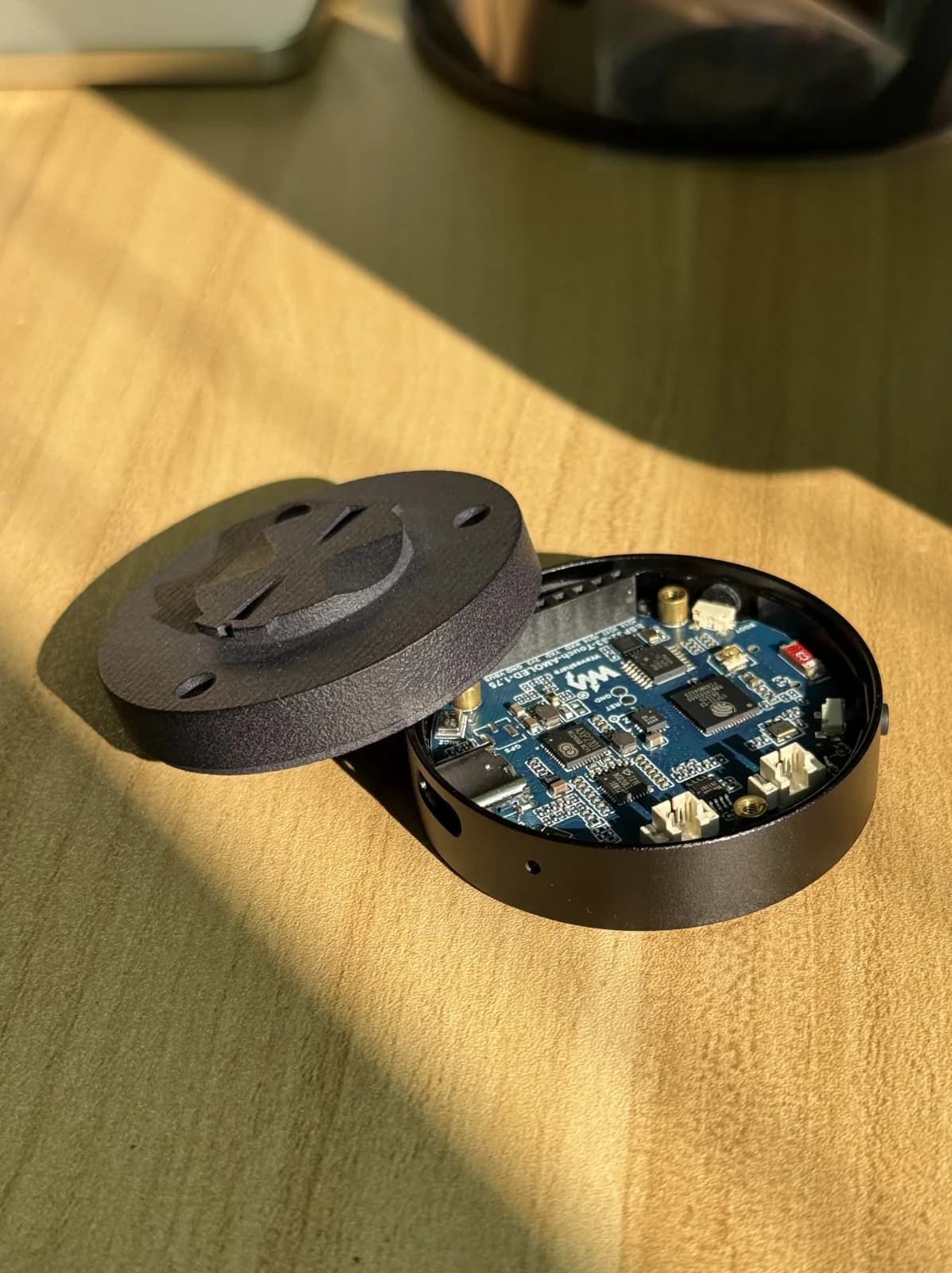
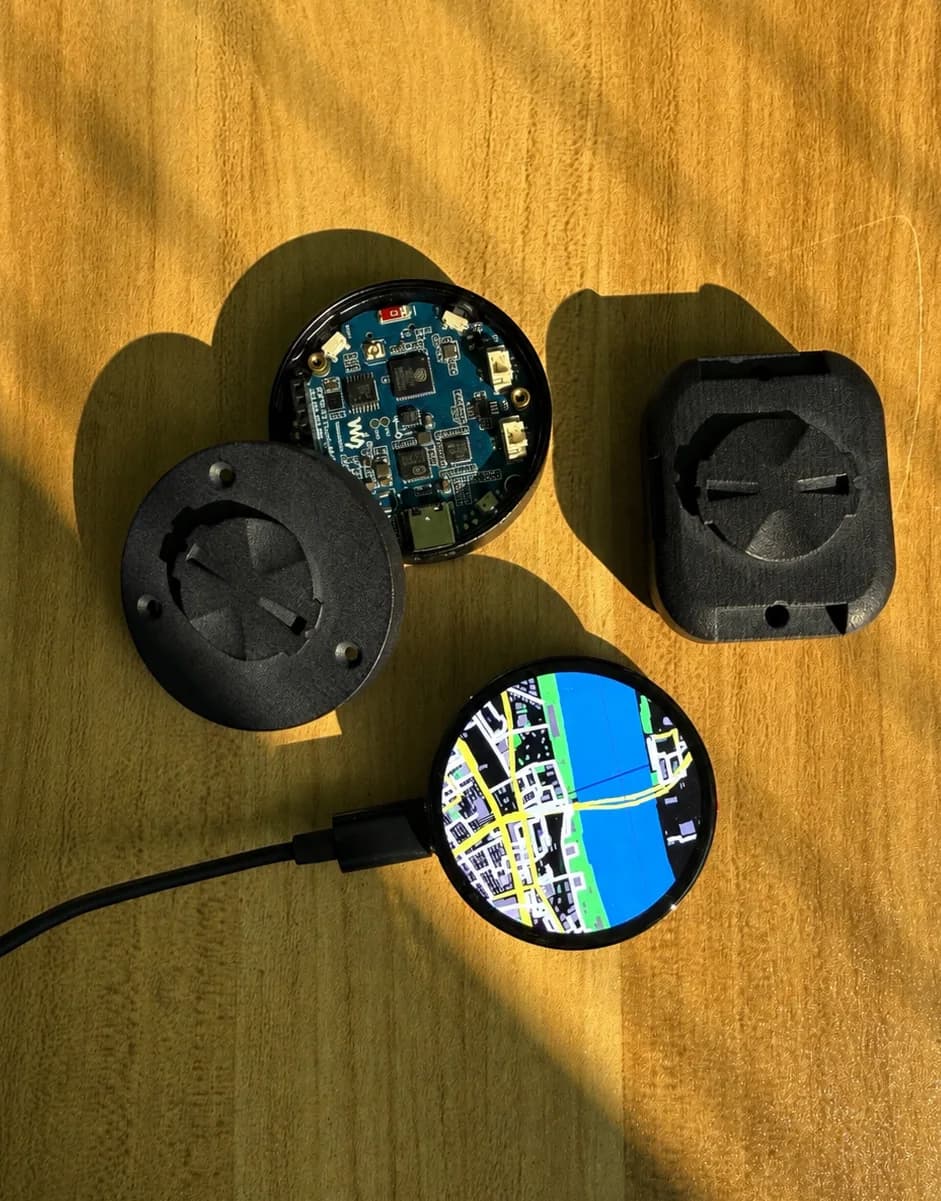
Use the vendor’s dimensional drawing and downloadable 3D design reference to establish the board shape. That reference is a starting point for design, not a ready-made Bicino enclosure STL. This guide does not publish new Bicino case files.
Keep the PCB supports, mounting holes and connector positions tied to their measured coordinates. Make room for the battery and cable bends before deciding the external dimensions. Leave the USB port and recovery controls accessible during the first prototype.
Print a fit check before a final enclosure. Verify that the board rests on its supports without pressure on the screen, the screws do not contact components, the buttons move freely and the charging cable can be inserted. Changing a battery may require another enclosure depth; globally scaling the entire model also moves holes and changes mount geometry.
Check power and mounting on the bench
Use the board manufacturer’s supported battery and charging arrangement. Confirm connector polarity and insulation before closing the case. Do not press or bend a cell to make it fit. Keep the power source restrained so vibration cannot pull on the connector.
Fit the mount and check its retention over the complete turning range of the handlebars. Inspect the clearance around cables and controls. A mechanically attached prototype still needs an assessment of vibration, heat and water exposure before normal outdoor use.
A watertight mesh in a modeling program describes geometry, not a waterproof product. Print seams, ports, buttons and assembly joints need their own solution. Do not describe an enclosure as waterproof based solely on its STL.
Bring up one function at a time
- Confirm that the correct firmware starts and the display and controls respond on the bench.
- Pair the supported app and display, then check one live metric and a simple navigation instruction.
- Check the map preparation required for your selected mode. Verify a local map on the device rather than assuming a route includes one.
- Power down and restart, then repeat the connection check.
- Complete a short nearby ride and inspect the mount, enclosure, saved workout and battery use afterward.
Decide whether the build is worth it for you
A DIY build is useful when you enjoy assembly, firmware and iteration. Count the board, battery, mount, printing, failed fits and your time when comparing it with a prepared device. The lowest parts price is not necessarily the lowest cost for a dependable everyday setup.
Keep a build record and make improvements from observed problems. That gives the next version a clear purpose and helps other builders reproduce the same hardware and software combination.