
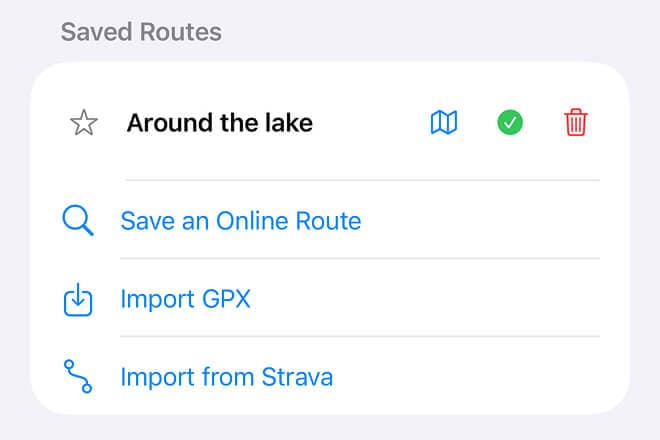
Open Saved Routes in Bicino and choose Import from Strava. Connect the intended Strava account, then select an available cycling route. After importing, inspect it in your saved-route library and prepare the device that will provide guidance. Import completion alone does not confirm offline maps or a successful Watch transfer.
Start with a planned cycling route
A route is a plan to follow; an activity is a record of an outing that already happened. Make sure you have a route available in Strava, not just an activity on your feed. If you want to repeat a past ride, first use a supported Strava workflow to turn it into a usable route.
Check the route’s beginning, direction, distance and destination. Look for an unexpected segment connecting the starting point to your current location. Importing faithfully is not the same as verifying that the plan suits today’s ride.
Connect and import
- Install the current Bicino app, open Saved Routes and tap Import from Strava.
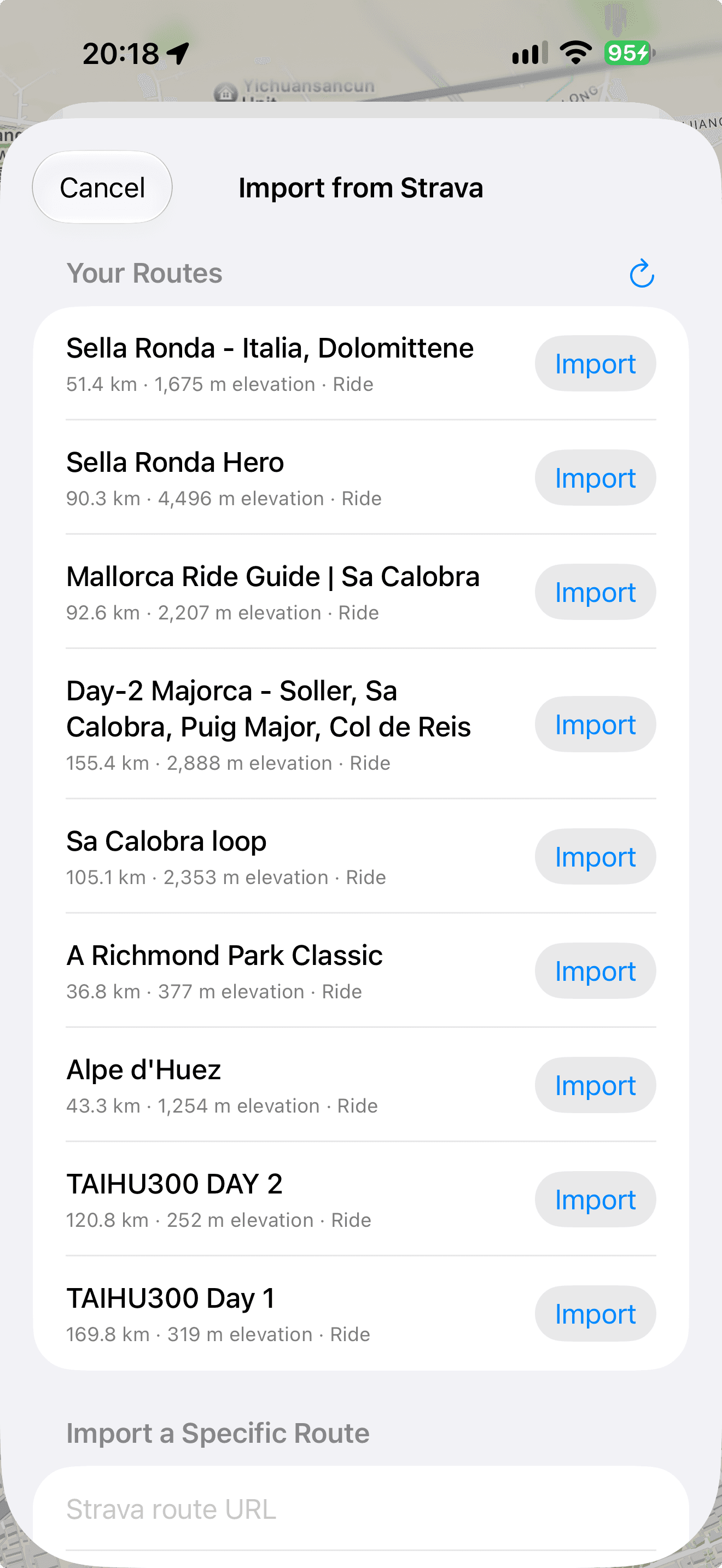
- Choose Connect with Strava if the account is not connected. Review the authorization and confirm the account that owns the route.
- In Your Routes, find the intended cycling route and choose Import. Inspect any error or authorization-expiry message rather than assuming it completed.
- Where the app offers Import a Specific Route, paste a Strava route URL and use Import Route. An activity link is not a route URL.
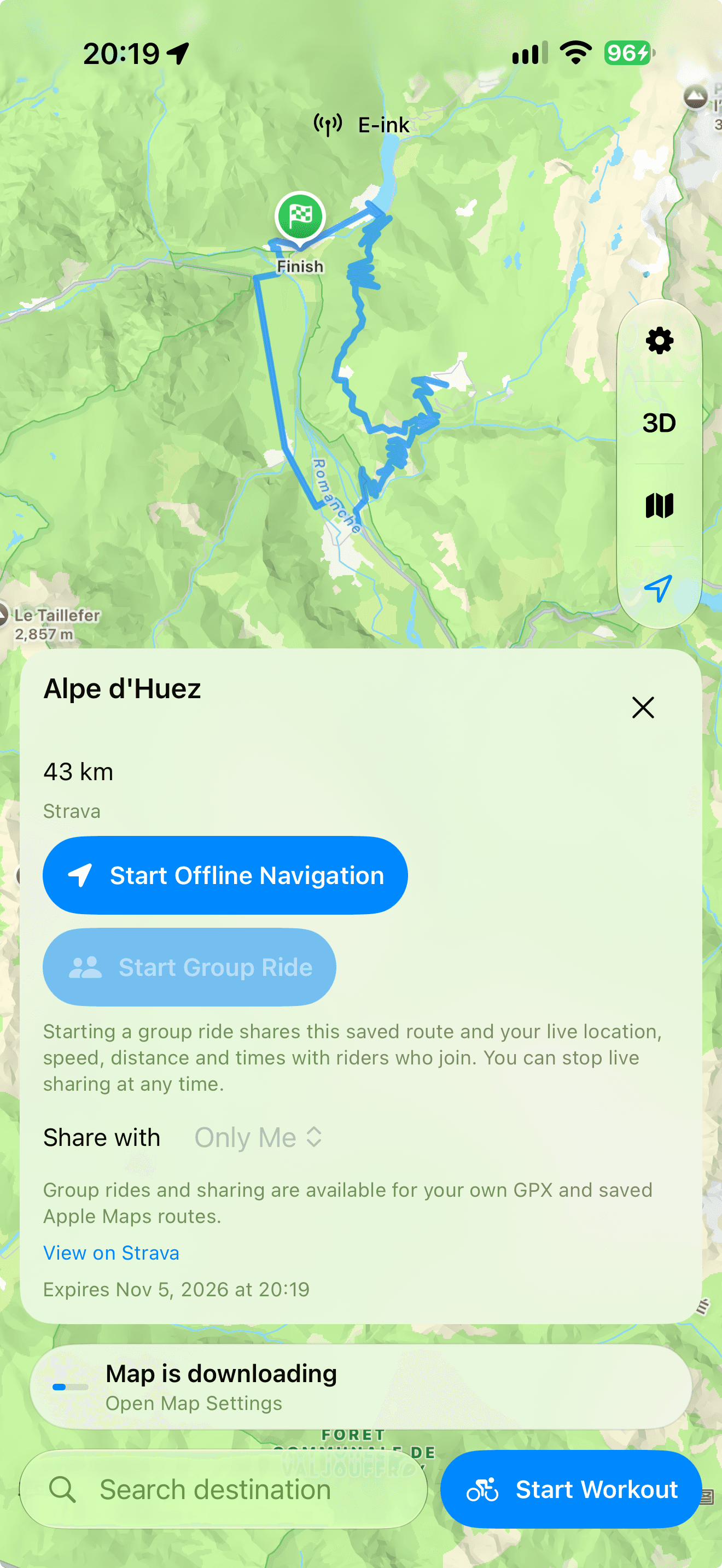
- Return to Saved Routes and open the imported item. Confirm its name and geometry before preparing navigation.
Prepare the screen you will ride from
Decide whether you will follow the route on the iPhone, Apple Watch or a connected bicino one display. A route existing in the phone library does not prove that it is available to another device. Complete any required transfer and confirm the receiving device can open it.
Keep the distinction between route guidance and map tiles. Guidance describes the planned journey; tiles provide the surrounding map. If you need to navigate away from a connection, confirm both requirements for the selected device and mode.
For the handlebar view, connect the intended Bicino display and inspect the opening guidance while stopped. For a Watch-led outing, check the saved route on the Watch itself. Begin with a nearby loop so you can verify the behavior without committing to a long route.
Check the route’s retention notice
The current Bicino Strava import interface explains a seven-day retention period for imported route data on iPhone and paired Watch, with options to reload or delete it sooner. Read the notice in your installed version and check availability again shortly before departure.
Do not import a touring route weeks ahead and assume it will remain ready indefinitely. Keep access to the original route, allow time to reload it when necessary and verify the local copy before leaving connectivity.
If no routes appear or an import fails
| Symptom | Next check |
|---|---|
| Your Routes is empty | Confirm the Strava account and that a planned route exists there. |
| Authorization expired | Reconnect through the displayed authorization flow, then reload the list. |
| The pasted link is rejected | Use the route’s URL, not an activity or profile link. |
| A route is not importable | Check that it is a supported cycling route. |
| It exists on iPhone but not Watch | Complete the Watch transfer and inspect its local library. |
Start one workout and check the finished ride
Choose the recorder that will own the completed activity, then start it once. The planned route and the workout have different lifecycles: the route guides the journey, while the workout records what you actually did.
After the rehearsal, save the activity and check the intended upload destination. A successful Strava route import does not by itself demonstrate that completed-workout upload is connected. Verify those two directions independently.
If the imported route was edited later in Strava, compare your saved copy and use the available reload workflow as needed. Treat the local route as a prepared copy rather than assuming every subsequent edit is already on your Watch or display.