
The short answer: start one workout recorder, start your route, and decide which screen will stay visible before you move. Apple Watch can provide directions and record a ride, while the paired iPhone can show live cycling metrics. A handlebar display reduces the need to switch views.
Why navigation and recording can feel like competing jobs
The Watch can run both Maps and a cycling workout, but only one app view can occupy the small screen at a time. Turn alerts and haptics help, yet a rider may still want to see the route while also watching heart rate, elapsed time or power. The problem is not whether both processes can run; it is where the information remains glanceable.
Three practical screen layouts
| Layout | Navigation view | Workout view |
|---|---|---|
| Watch only | Maps on the wrist, with haptic turn prompts. | Switch back to the workout screen when needed. |
| Watch + mounted iPhone | Maps stays open on the phone. | Watch records; Cycling Live Activity can show metrics on iPhone. |
| Watch + connected display | Upcoming turns stay visible on the handlebars. | Watch records while selected metrics can share the bar display. |
A clean pre-ride sequence
- Choose one app that will own the workout recording.
- Open the route and inspect its opening turns.
- Connect any cadence, power, speed or heart-rate sensors.
- Confirm the chosen navigation screen is receiving updates.
- Start the workout once, then ride.
That first step prevents duplicate activities. Starting Apple Workout and a second recording app can create two Health entries or make later export decisions confusing. Pick the recorder that owns the final workout file.
Be careful with the Strava handoff
Strava says Apple Health automatically imports workouts recorded by the native Apple Workout app, while workouts written to Health by third-party apps do not sync through that particular path. If Strava is part of your routine, verify how your chosen recording app exports before the ride that matters. Route import and completed-workout upload are separate features.
The Bicino version of this setup
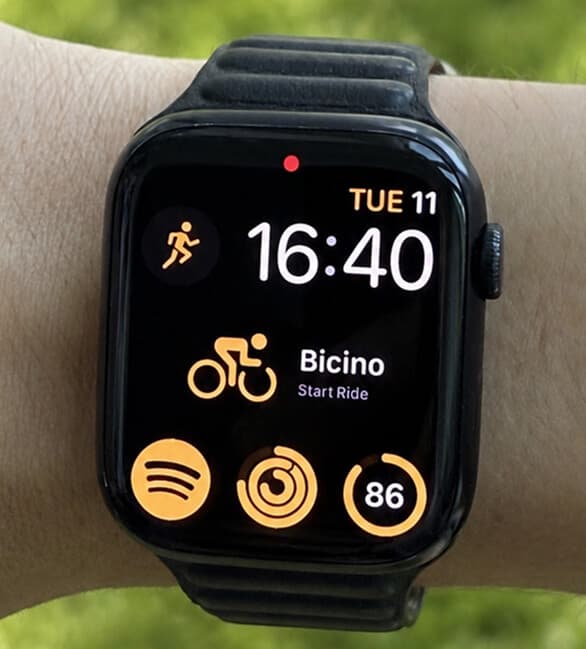
With Bicino, the Watch app records the cycling workout and the iPhone handles the broader connected experience. Bicino one keeps navigation and selected ride metrics in your line of sight. The goal is not to make you stop using the Watch; it is to give the Watch data and route instructions a better place to be seen while moving.
Run the whole chain once near home: permissions, Watch workout, route, display connection and the method you use to save or share the activity afterwards. A five-minute rehearsal finds more problems than a checklist read in the garage.
Safety still outranks screen continuity
Configure the ride while stopped. Use audio or haptic cues when they reduce screen time, and never interact with a touch screen through a junction. A continuously visible display is valuable precisely because it should demand less attention, not invite more of it.
To understand why Watch heart rate appears on some displays but not others, read Apple Watch heart rate on a bike computer.