
Apple Watch can support phone-free cycling, but the answer depends on the app, Watch model, software and downloaded content. GPS reception, mobile data and a connection to the iPhone are different things. Verify recording and navigation separately before leaving the phone behind.
What does “offline” mean for your ride?
A setup can record your position without being able to search for a new destination. It can show a route line without having the surrounding map stored locally. It can keep a saved route on the phone without having transferred anything to the Watch.
List the jobs you need: record the workout, follow a planned route, see nearby roads, recover after a missed turn, and contact someone. That list is more useful than a single offline label. Choose an app based on the jobs that must survive the loss of the phone and network.
| Capability | What to verify |
|---|---|
| Workout recording | Start and save the activity on the Watch with the phone disconnected. |
| Saved route guidance | The intended route opens locally on the Watch. |
| Offline map display | The required area is downloaded to the Watch, including likely detours. |
| Searching or rerouting | The app explicitly supports the operation without a network. |
| Calls and online services | Appropriate cellular service or another communication option. |
Do you need a cellular Apple Watch?
A cellular plan is not what makes a downloaded route or map local. It provides a possible network connection for services that need one. A GPS-capable Watch and an app that supports local recording or guidance can handle those specific jobs without using a cellular plan.
However, being able to navigate does not mean every online feature or communication method is available. Confirm the capabilities of your exact Watch and carrier if those services form part of your plan.
Check where Apple Maps stores the map
On supported software, Apple lets you sync offline maps from the iPhone to the Watch. In iPhone Maps, open your profile, then Offline Maps, and enable Sync with Apple Watch. On the Watch, inspect Offline Maps: entries under On This Watch are local; entries under On Your iPhone depend on the nearby phone.
Availability varies by region and software version. Download enough area for the actual route and plausible alternatives, then open that map on the Watch before leaving. Do not infer local storage just because it appeared while the phone was beside you.
Saved routes in other apps
Komoot documents standalone Watch navigation with downloaded routes and maps in an unlocked region. Other apps make different choices about local routes, map downloads and the role of the phone. Check the current Watch instructions for the app you actually use.
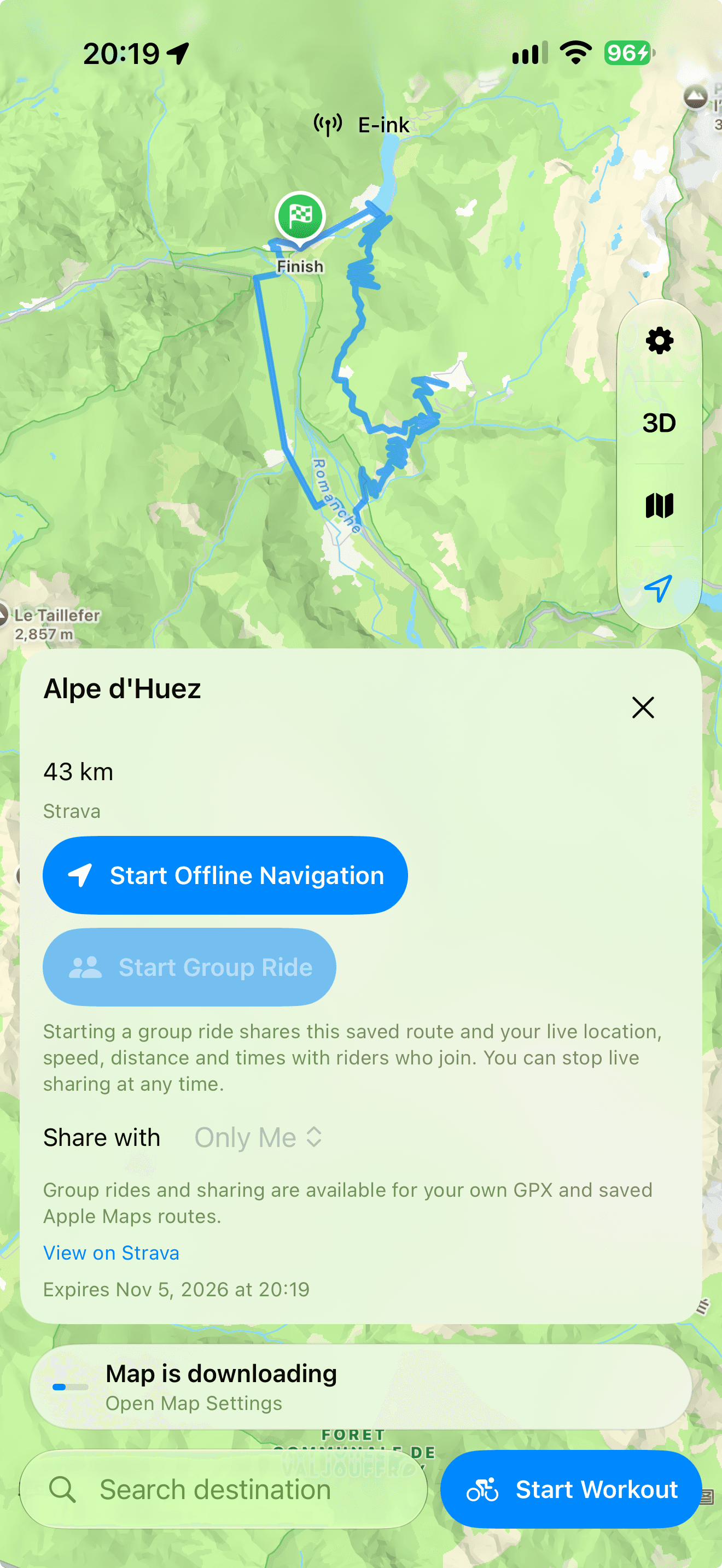
In Bicino, saving guidance on the iPhone, sending a saved route to Apple Watch and transferring map tiles are distinct preparation steps. The current route-saving interface explicitly distinguishes guidance from offline map tiles. Confirm the route and required map state on the receiving device.
Strava imports can also carry an expiry notice in Bicino. Review it before preparing a route far ahead of departure, and reload when required. A route that was ready last week is not automatically ready for tomorrow.
Rehearse the disconnected setup
- Prepare the route and maps while connected. Wait for all downloads and transfers to complete.
- Keep Bluetooth enabled if a sensor or handlebar display needs it. Disconnect the phone separately rather than disabling every radio at once.
- Open the route and map on the Watch, then start a short workout near home.
- Check the location, guidance and intended display while the phone is absent. Inspect the app’s behavior after a pause or missed turn.
- Finish and save. Reconnect later and verify the saved track and upload workflow.
What happens if you leave the planned route?
Look for a documented recovery behavior: a direction back to the route, local rerouting, or a request for a network connection. Those are different responses. Test a simple nearby deviation before relying on the app in unfamiliar terrain.
Bring the setup that matches the consequences of a failure. For a new remote route, keeping a phone available may be a useful backup even when the primary navigation runs independently on the Watch.